Music Audio Editor, MP3 Cutter
Video Screen Recorder, Voice Audio Editor, Cut MP3Music & Audio
4.518.12K Reviews
- Version
- 2.8.4.2
- Installs
- 50.00M
- Age Rating
- Everyone
Screenshots
Our Review of Music Audio Editor, MP3 Cutter
 Analysis by Appyee
I tend to reach for a phone audio editor when I have a small, specific job: trim a recording, prepare a short clip, or make a sound file easier to share. Music Audio Editor, MP3 Cutter is aimed at that kind of hands-on work, bringing several common audio tasks into one app rather than asking me to switch between separate tools. It is a free music and audio app from Video Screen Recorder, Voice Audio Editor, Cut MP3, rated for Everyone, and it has a 4.6 average from around 1.4 million ratings. That popularity is reassuring, though it doesn’t tell me whether its workflow will suit every creator.
A practical place to begin
The app makes most sense when I already know what I want to make. Perhaps I have a long voice memo and need its useful middle section, a song I want to shorten for a personal ringtone, or a spoken introduction that needs to sit beside music. Instead of treating audio production as a blank-page project, I can start with a file and shape it toward a clear purpose. That keeps the learning curve manageable for casual editing.
There is a useful distinction between an editor for quick preparation and a full production environment. I would use this app for compact jobs where trimming, combining, or adjusting a clip is the main task. If I were arranging a detailed composition with many takes, monitoring complex layers, or coordinating a group recording, I would look for a dedicated desktop workstation or a more specialized mobile production tool. A phone-first editor is at its best when convenience matters more than deep control.
Choosing the right source before editing
Before I start cutting, I try to identify the original file and keep it separate from the version I am changing. That small habit matters with any mobile editor: it gives me a clean fallback if I trim too aggressively or dislike an effect. For a spoken clip, I listen once all the way through before opening the timeline, then note the phrase I want to preserve and where it begins and ends. It is much easier to make a deliberate edit than to hunt through the waveform by guesswork.
For music, I would also think about the intended destination before choosing a section. A ringtone needs a clear opening and a natural ending, while a short social clip may need to start on the most recognizable beat. A podcast intro has a different job again: the voice must remain understandable when placed with music. Those decisions are creative, not just technical, and they help prevent a polished-looking cut from feeling abrupt or awkward when played back.
The app is particularly appealing if you want to make these decisions on the same device where you listen and share. Its free price lowers the barrier to trying it, while optional in-app purchases range from $0.99 to $19.99 per item. I would begin with the free tools and see whether they cover my real workflow before paying for anything. That is more sensible than buying extra options just because they are visible; the value depends on how often I edit and what kinds of files I handle.
Making a useful edit, from first cut to finished file
I focus here on the practical path from an existing recording to a file ready for its next use, rather than treating editing as a collection of buttons. A useful habit is to decide who will hear the result and where before making the first cut; that gives each trim, level change, and format choice a clear purpose. From there, I can judge whether the finished file is ready to share or still needs a more specialized tool.
Getting Started with Music Audio Editor
First off, downloading and installing the app is a breeze. It’s available on both Android and iOS, so whether you’re team Apple or Android, you’re covered. Once installed, the app greets you with a simple and intuitive interface that even your grandma could figure out. Seriously, it’s that user-friendly!
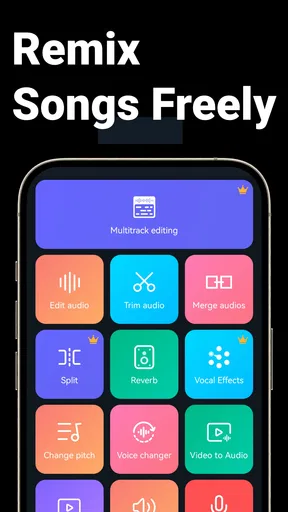
The main dashboard is laid out with all the essential tools like cutting, trimming, and mixing. You can easily import your favorite tracks, whether they’re stored on your device or in the cloud, and start editing right away.
Features That Stand Out
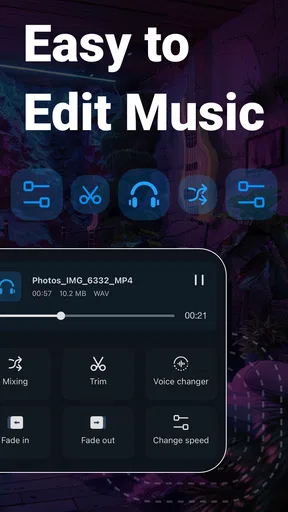
What really caught my attention is the variety of features packed into this app. You can do basic stuff like cutting and trimming audio files, which is perfect for creating those custom ringtones. But it doesn’t stop there. The app also lets you mix different tracks, change the audio format, and even adjust the volume levels.
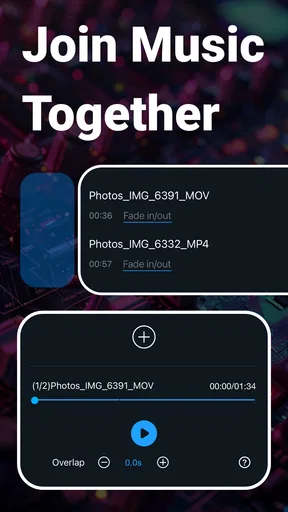
Another cool feature is the ability to merge different audio files. Say you want to combine a song with a voiceover for a podcast intro, you can do that effortlessly with this app. Plus, it supports a wide range of formats like MP3, WAV, AAC, and more, which is super handy.
Editing Made Easy
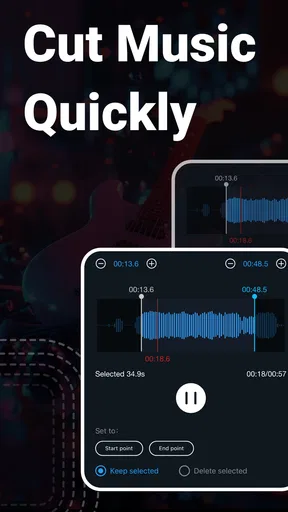
Now, let’s talk about the editing experience. The app’s timeline editor is where the magic happens. It’s smooth and responsive, allowing you to zoom in and out to fine-tune your edits. You can set precise start and end points for your cuts, ensuring you get the exact portion of the audio you want.
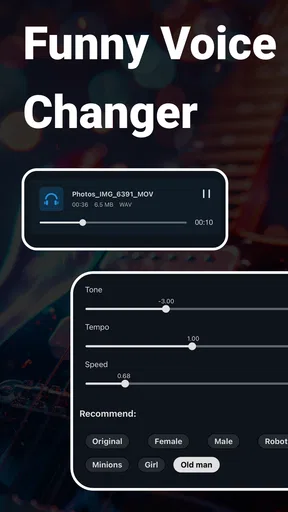
The app also offers audio effects like fade in, fade out, and echo, which can really enhance your edits. Want to make your track sound like it’s playing in a concert hall? Just add a bit of reverb, and voila!
Listening back and refining the result
I wouldn’t judge a cut only by the waveform. After making the first selection, I listen from a little before the start point through to a little after the ending. That catches clipped consonants in speech and musical notes that feel chopped short. If the edit sounds too sudden, a gentle fade can make it feel intentional; if the original recording has a quiet pause, trimming that space may make a voice clip feel more direct without changing what the speaker said.
When combining a voice recording with music, I’d keep the first pass simple: set the levels so the voice stays easy to understand, then listen through the whole section at ordinary phone volume. A backing track that sounds subtle while editing can compete with speech once played in a different setting. This is a practical use for volume adjustment and mixing, but I wouldn’t treat the result as a substitute for careful recording or a full mastering chain.
Effects are best used with restraint. Echo or reverb can add character to a short sound, but on a spoken message they can make words harder to follow. I’d save an untreated version first, compare it with the processed one, and keep whichever communicates more clearly. That quick A/B habit is especially helpful when an effect sounds impressive in isolation but becomes distracting in the actual clip.
Exporting for the next step
Once the edit is ready, I consider where it is going before saving. A short ringtone, a voice note for a friend, and an audio element for a larger project do not necessarily need the same balance between file size and sound quality. The option to choose formats and bitrates is useful here, but I would avoid assuming that the biggest setting automatically improves a source recording. If the original is noisy or compressed, exporting it at a higher setting will not restore information that was never there.
For work that will continue in another editor, I would keep an untouched source and label the finished file clearly so I don’t mistake a temporary draft for the final version. For something I’m sharing directly, I’d play the exported copy rather than relying only on the in-app preview. That last check can reveal an awkward ending or a level that feels different after saving. It is a small step, but it prevents a surprising number of avoidable handoff problems.
Who will get the most from it
I can see this fitting students who need to clean up a spoken assignment, creators preparing a short audio insert, and anyone who regularly makes personal ringtones or trims recordings on the go. It can also be handy for a small community project where one person needs to join a short narration with music before sending a draft around. In those situations, having editing and basic finishing tasks together is more convenient than moving every clip through multiple apps.
I’d be less likely to choose it as my main tool for serious multitrack production, detailed noise repair, or collaborative work that depends on a shared project format. Those jobs usually benefit from deeper controls and a workflow built around revision. Likewise, if I only need to shorten one recording once in a while, the app may offer more tools than I need; a basic recorder or a simple built-in trim function could be quicker. The right choice depends on whether the extra editing options will actually save time.
Sharing and Saving Your Creations
Once you’ve crafted your masterpiece, saving and sharing it is a piece of cake. The app lets you save your edited tracks directly to your device or share them via social media or messaging apps. Whether you want to impress your friends with a custom ringtone or share a podcast clip, the app makes it super easy to get your creations out there.
One thing I found particularly useful is the option to save your projects in different formats and bitrates. This means you can choose the best settings for your needs, whether you’re looking for high-quality audio or a smaller file size.
What to expect on a phone
There is a trade-off to keeping editing on a mobile device: a compact screen is convenient, but it is not the easiest place to compare many versions or make tiny edits across a long recording. Zooming in helps with choosing a cut, yet I still rely on repeated playback rather than expecting a visual line to guarantee a clean edit. If precision is critical, headphones and a quiet moment are more useful than rushing through the timeline on a noisy commute.
For a realistic everyday example, imagine recording a quick interview answer for a class project between errands. I would first keep the original recording, then trim the dead air at the beginning and end, listen for a clean start to the first word, and adjust the level if the voice is too quiet. If the assignment needs a musical opening, I could combine a short music passage with the narration and check that the speech remains clear. I’d export a version suitable for the handoff, play it back, and only then send it. The app’s value in that moment is not replacing a studio; it is making a manageable edit possible without waiting to get back to a computer.
It is also worth setting expectations around compatibility and access. The current version is 2.8.3.1, and Android users need version 6.0 or later. The app has passed 50 million installs, which suggests it has reached a broad audience, but a large user base does not guarantee that every device or file will behave identically. I’d check that my source audio is available locally and that I can play the exported file in the app I plan to use next. That avoids discovering a handoff issue after I have already deleted or moved the original.
Final Thoughts
Overall, the Music Audio Editor, MP3 Cutter app is a fantastic tool for anyone looking to explore their creative side with audio editing. It’s packed with features yet remains incredibly easy to use. Whether you’re a budding musician, a podcast enthusiast, or just someone who loves to tinker with sound, this app has something to offer.
If you’re on the hunt for a versatile and user-friendly audio editor, I’d definitely recommend giving this one a try. It’s like having your own pocket-sized sound studio ready to go whenever inspiration strikes. Happy editing!
My verdict for everyday creators
What I like most is the breadth of small jobs it can handle without demanding a specialist setup. What I would keep in mind is that “many tools in one app” does not automatically mean every task is equally comfortable or precise. I’d treat it as a practical editor for preparing clips and experimenting, then move to a dedicated workstation when the project calls for extensive arrangement, repeatable production, or fine-grained control.
For someone who wants a quick path from a recording to a clean, shareable audio file, I think it is worth trying. Its free entry point makes that an easy decision, and the Everyone age rating makes it broadly accessible; the in-app purchase range is something to consider only if a particular paid option matches a regular need. If your work is mostly occasional trims and simple mixes, it may be a useful pocket tool. If your goal is a polished, complex release, I would choose a more specialized editor and use this one for quick edits on the side.
Verdict
Strengths of Music Audio Editor, MP3 Cutter
- User-friendly interface makes editing easy.
- Supports multiple audio formats.
- Fast processing with no lag.
- Includes advanced editing tools.
- Free version available with basic features.
Limitations of Music Audio Editor, MP3 Cutter
- Ads can be intrusive in the free version.
- Limited features without in-app purchases.
- Occasional bugs with large files.
- No cloud storage integration.
- Lacks detailed tutorials for beginners.
Similar Picks in This Category
View All
YouTube Music
Google LLC4.4

Samsung Music
Samsung Electronics Co., Ltd.3.8

Spotify: Music and Podcasts
Spotify AB4.3

JioSaavn - Music & Podcasts
Saavn Media Limited4.3

Lark Player:Music Player & MP3
Lark Player Studio - Music, MP3 & Video Player4.6

StarMaker: Sing Karaoke Songs
SKYWORK AI PTE. LTD.4.3
Frequently Asked Questions
What features does the Music Audio Editor, MP3 Cutter offer?
The Music Audio Editor, MP3 Cutter provides a range of features including audio trimming, merging, and mixing. Users can also convert audio files into different formats, apply filters, and adjust sound quality. These features make it an ideal tool for both casual users and professional audio editors.
Is the Music Audio Editor, MP3 Cutter app free to use?
The app offers a free version with basic features, while advanced tools and functionalities may require in-app purchases or a subscription. This allows users to try out the app before deciding if the premium features suit their needs.
Can I use the Music Audio Editor, MP3 Cutter offline?
Yes, the app can be used offline for most editing tasks. Users can edit, trim, and save audio files without an internet connection. However, some features like cloud storage access or sharing on social media might require online connectivity.
What audio formats are supported by the Music Audio Editor, MP3 Cutter?
The app supports a wide range of audio formats including MP3, WAV, AAC, FLAC, and more. This versatility ensures that users can work with various audio files, making it a comprehensive tool for diverse editing needs.
Is the Music Audio Editor, MP3 Cutter user-friendly for beginners?
Absolutely! The app is designed with an intuitive interface that makes it accessible for beginners. With easy-to-use controls and clear instructions, new users can quickly learn how to edit and enhance their audio files efficiently.
